Showing posts with label dialogfragment. Show all posts

Create DialogFragment with AlertDialog Builder

| 0 comments |

Last post show a example of DialogFragment, to create dialog view in onCreateView(). This example show how to create Dialog using AlertDialog.Builder() in onCreateDialog().


MainActivity.java
package com.blogspot.android_er.androiddialogfragment;

import android.app.AlertDialog;
import android.app.Dialog;
import android.app.DialogFragment;
import android.app.Fragment;
import android.app.FragmentTransaction;
import android.content.DialogInterface;
import android.os.Bundle;
import android.support.v7.app.AppCompatActivity;
import android.view.View;
import android.widget.Button;
import android.widget.EditText;
import android.widget.Toast;

public class MainActivity extends AppCompatActivity {

EditText inputTextField;

@Override
protected void onCreate(Bundle savedInstanceState) {
super.onCreate(savedInstanceState);
setContentView(R.layout.activity_main);

inputTextField = (EditText)findViewById(R.id.inputtext);
Button btnOpen = (Button)findViewById(R.id.opendialog);
btnOpen.setOnClickListener(new View.OnClickListener() {
@Override
public void onClick(View v) {
showDialog();
}
});
}

void showDialog() {
FragmentTransaction ft = getFragmentManager().beginTransaction();
Fragment prev = getFragmentManager().findFragmentByTag("dialog");
if (prev != null) {
ft.remove(prev);
}
ft.addToBackStack(null);

String inputText = inputTextField.getText().toString();

DialogFragment newFragment = MyDialogFragment.newInstance(inputText);
newFragment.show(ft, "dialog");

}

public static class MyDialogFragment extends DialogFragment {

String mText;

static MyDialogFragment newInstance(String text) {
MyDialogFragment f = new MyDialogFragment();

Bundle args = new Bundle();
args.putString("text", text);
f.setArguments(args);

return f;
}

@Override
public Dialog onCreateDialog(Bundle savedInstanceState) {
mText = getArguments().getString("text");

return new AlertDialog.Builder(getActivity())
.setIcon(R.mipmap.ic_launcher)
.setTitle("Alert Dialog")
.setMessage(mText)
.setPositiveButton("OK",
new DialogInterface.OnClickListener() {
public void onClick(DialogInterface dialog, int whichButton) {
Toast.makeText(getActivity(), "OK", Toast.LENGTH_LONG).show();
}
}
)
.setNegativeButton("Cancel", null)
.create();
}

}
}


layout/activity_main.xml
<?xml version="1.0" encoding="utf-8"?>
<LinearLayout


android_layout_width="match_parent"
android_layout_height="match_parent"
android_padding="16dp"
android_orientation="vertical"
tools_context=".MainActivity"
android_background="#808080">

<TextView
android_layout_width="wrap_content"
android_layout_height="wrap_content"
android_layout_gravity="center_horizontal"
android_autoLink="web"
android_text="http://android-er.blogspot.com/"
android_textStyle="bold" />

<EditText
android_id="@+id/inputtext"
android_layout_width="match_parent"
android_layout_height="wrap_content"
android_hint="Type something"/>
<Button
android_id="@+id/opendialog"
android_layout_width="match_parent"
android_layout_height="wrap_content"
android_text="Open DialogFragment"
android_textAllCaps="false"/>
</LinearLayout>


Next:
- Implement interactive DialogFragment

Read More..

Implement interactive DialogFragment

| 0 comments |

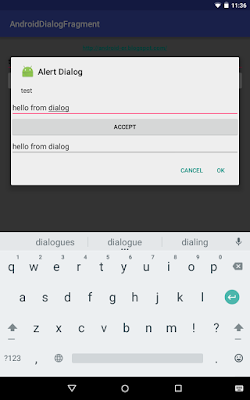
This example modify from last example of "Create DialogFragment with AlertDialog.Builder", to implement interactive DialogFragment. Something sent from main activity to DialogFragment, and something editable in DialogFragment, and something sent from DialogFragment back to main activity.


MainActivity.java
package com.blogspot.android_er.androiddialogfragment;

import android.app.AlertDialog;
import android.app.Dialog;
import android.app.DialogFragment;
import android.app.Fragment;
import android.app.FragmentTransaction;
import android.content.DialogInterface;
import android.os.Bundle;
import android.support.v7.app.AppCompatActivity;
import android.view.View;
import android.widget.Button;
import android.widget.EditText;
import android.widget.LinearLayout;
import android.widget.Toast;

public class MainActivity extends AppCompatActivity {

EditText inputTextField;

@Override
protected void onCreate(Bundle savedInstanceState) {
super.onCreate(savedInstanceState);
setContentView(R.layout.activity_main);

inputTextField = (EditText)findViewById(R.id.inputtext);
Button btnOpen = (Button)findViewById(R.id.opendialog);
btnOpen.setOnClickListener(new View.OnClickListener() {
@Override
public void onClick(View v) {
showDialog();
}
});
}


void showDialog() {
FragmentTransaction ft = getFragmentManager().beginTransaction();
Fragment prev = getFragmentManager().findFragmentByTag("dialog");
if (prev != null) {
ft.remove(prev);
}
ft.addToBackStack(null);

String inputText = inputTextField.getText().toString();

DialogFragment newFragment = MyDialogFragment.newInstance(inputText, inputTextField);
newFragment.show(ft, "dialog");

}

public static class MyDialogFragment extends DialogFragment {

String mText;
static EditText backTextField;

static MyDialogFragment newInstance(String text, EditText editText) {
backTextField = editText;
MyDialogFragment f = new MyDialogFragment();

Bundle args = new Bundle();
args.putString("text", text);
f.setArguments(args);

return f;
}

@Override
public Dialog onCreateDialog(Bundle savedInstanceState) {
mText = getArguments().getString("text");

//create custom LinearLayout programmatically
LinearLayout layout = new LinearLayout(getActivity());
layout.setLayoutParams(new LinearLayout.LayoutParams(
LinearLayout.LayoutParams.MATCH_PARENT,
LinearLayout.LayoutParams.WRAP_CONTENT));
layout.setOrientation(LinearLayout.VERTICAL);

final EditText editField = new EditText(getActivity());
editField.setHint("type something");
Button btnAccept = new Button(getActivity());
btnAccept.setText("Accept");
final EditText textField = new EditText(getActivity());
btnAccept.setOnClickListener(new View.OnClickListener() {
@Override
public void onClick(View v) {
textField.setText(editField.getText().toString());
}
});

layout.addView(editField);
layout.addView(btnAccept);
layout.addView(textField);

return new AlertDialog.Builder(getActivity())
.setIcon(R.mipmap.ic_launcher)
.setTitle("Alert Dialog")
.setMessage(mText)
.setPositiveButton("OK",
new DialogInterface.OnClickListener() {
public void onClick(DialogInterface dialog, int whichButton) {
Toast.makeText(getActivity(),
textField.getText(),
Toast.LENGTH_LONG).show();
backTextField.setText(textField.getText());
}
}
)
.setNegativeButton("Cancel", null)
.setView(layout)
.create();
}

}
}


layout/activity_main.xml
<?xml version="1.0" encoding="utf-8"?>
<LinearLayout


android_layout_width="match_parent"
android_layout_height="match_parent"
android_padding="16dp"
android_orientation="vertical"
tools_context=".MainActivity"
android_background="#808080">

<TextView
android_layout_width="wrap_content"
android_layout_height="wrap_content"
android_layout_gravity="center_horizontal"
android_autoLink="web"
android_text="http://android-er.blogspot.com/"
android_textStyle="bold" />

<EditText
android_id="@+id/inputtext"
android_layout_width="match_parent"
android_layout_height="wrap_content"
android_hint="Type something"/>
<Button
android_id="@+id/opendialog"
android_layout_width="match_parent"
android_layout_height="wrap_content"
android_text="Open DialogFragment"
android_textAllCaps="false"/>

</LinearLayout>


Read More..

Display StreetViewPanoramaView in DialogFragment when user click on InfoWindow

| 0 comments |

Example modify from last example "Detect user click on InfoWindow, by implementing GoogleMap.OnInfoWindowClickListener()", to open DialogFragment with StreetViewPanoramaView when user click on InfoWindow.


MapsActivity.java
package com.blogspot.android_er.androidstudiomapapp;

import android.app.AlertDialog;
import android.app.Dialog;
import android.app.DialogFragment;
import android.app.Fragment;
import android.app.FragmentTransaction;
import android.content.DialogInterface;
import android.content.Intent;
import android.graphics.drawable.Drawable;
import android.net.Uri;
import android.os.Bundle;
import android.support.v7.app.AppCompatActivity;
import android.text.InputType;
import android.view.Menu;
import android.view.MenuItem;
import android.view.View;
import android.widget.EditText;
import android.widget.ImageView;
import android.widget.LinearLayout;
import android.widget.TextView;
import android.widget.Toast;

import com.google.android.gms.common.GoogleApiAvailability;
import com.google.android.gms.maps.CameraUpdateFactory;
import com.google.android.gms.maps.GoogleMap;
import com.google.android.gms.maps.OnMapReadyCallback;
import com.google.android.gms.maps.StreetViewPanoramaOptions;
import com.google.android.gms.maps.StreetViewPanoramaView;
import com.google.android.gms.maps.SupportMapFragment;
import com.google.android.gms.maps.model.LatLng;
import com.google.android.gms.maps.model.Marker;
import com.google.android.gms.maps.model.MarkerOptions;

public class MapsActivity extends AppCompatActivity implements OnMapReadyCallback,
GoogleMap.OnMapClickListener, GoogleMap.OnMapLongClickListener,
GoogleMap.OnMarkerDragListener, GoogleMap.InfoWindowAdapter {

private GoogleMap mMap;

@Override
protected void onCreate(Bundle savedInstanceState) {
super.onCreate(savedInstanceState);
setContentView(R.layout.activity_maps);
// Obtain the SupportMapFragment and get notified when the map is ready to be used.
SupportMapFragment mapFragment = (SupportMapFragment) getSupportFragmentManager()
.findFragmentById(R.id.map);
mapFragment.getMapAsync(this);

}

/**
* Manipulates the map once available.
* This callback is triggered when the map is ready to be used.
* This is where we can add markers or lines, add listeners or move the camera. In this case,
* we just add a marker near Sydney, Australia.
* If Google Play services is not installed on the device, the user will be prompted to install
* it inside the SupportMapFragment. This method will only be triggered once the user has
* installed Google Play services and returned to the app.
*/
@Override
public void onMapReady(GoogleMap googleMap) {
mMap = googleMap;
mMap.setOnMapClickListener(this);
mMap.setOnMapLongClickListener(this);
mMap.setOnMarkerDragListener(this);
mMap.setInfoWindowAdapter(this);
mMap.setOnInfoWindowClickListener(MyOnInfoWindowClickListener);
}

@Override
public boolean onCreateOptionsMenu(Menu menu) {
getMenuInflater().inflate(R.menu.activity_main, menu);
return super.onCreateOptionsMenu(menu);
}

@Override
public boolean onOptionsItemSelected(MenuItem item) {
switch (item.getItemId()) {
case R.id.menu_addmarkers:
addMarker();
return true;
case R.id.maptypeHYBRID:
if(mMap != null){
mMap.setMapType(GoogleMap.MAP_TYPE_HYBRID);
return true;
}
case R.id.maptypeNONE:
if(mMap != null){
mMap.setMapType(GoogleMap.MAP_TYPE_NONE);
return true;
}
case R.id.maptypeNORMAL:
if(mMap != null){
mMap.setMapType(GoogleMap.MAP_TYPE_NORMAL);
return true;
}
case R.id.maptypeSATELLITE:
if(mMap != null){
mMap.setMapType(GoogleMap.MAP_TYPE_SATELLITE);
return true;
}
case R.id.maptypeTERRAIN:
if(mMap != null){
mMap.setMapType(GoogleMap.MAP_TYPE_TERRAIN);
return true;
}
case R.id.menu_legalnotices:
String LicenseInfo = GoogleApiAvailability
.getInstance()
.getOpenSourceSoftwareLicenseInfo(MapsActivity.this);
AlertDialog.Builder LicenseDialog =
new AlertDialog.Builder(MapsActivity.this);
LicenseDialog.setTitle("Legal Notices");
LicenseDialog.setMessage(LicenseInfo);
LicenseDialog.show();
return true;
case R.id.menu_about:
AlertDialog.Builder aboutDialogBuilder =
new AlertDialog.Builder(MapsActivity.this);
aboutDialogBuilder.setTitle("About Me")
.setMessage("http://android-er.blogspot.com");

aboutDialogBuilder.setPositiveButton("visit",
new DialogInterface.OnClickListener() {
@Override
public void onClick(DialogInterface dialog, int which) {
String url = "http://android-er.blogspot.com";
Intent i = new Intent(Intent.ACTION_VIEW);
i.setData(Uri.parse(url));
startActivity(i);
}
});

aboutDialogBuilder.setNegativeButton("Dismiss",
new DialogInterface.OnClickListener() {
@Override
public void onClick(DialogInterface dialog, int which) {
dialog.cancel();
}
});

AlertDialog aboutDialog = aboutDialogBuilder.create();
aboutDialog.show();

return true;
}
return super.onOptionsItemSelected(item);
}

private void addMarker(){
if(mMap != null){

//create custom LinearLayout programmatically
LinearLayout layout = new LinearLayout(MapsActivity.this);
layout.setLayoutParams(new LinearLayout.LayoutParams(
LinearLayout.LayoutParams.MATCH_PARENT,
LinearLayout.LayoutParams.WRAP_CONTENT));
layout.setOrientation(LinearLayout.VERTICAL);

final EditText titleField = new EditText(MapsActivity.this);
titleField.setHint("Title");

final EditText latField = new EditText(MapsActivity.this);
latField.setHint("Latitude");
latField.setInputType(InputType.TYPE_CLASS_NUMBER
| InputType.TYPE_NUMBER_FLAG_DECIMAL
| InputType.TYPE_NUMBER_FLAG_SIGNED);

final EditText lonField = new EditText(MapsActivity.this);
lonField.setHint("Longitude");
lonField.setInputType(InputType.TYPE_CLASS_NUMBER
| InputType.TYPE_NUMBER_FLAG_DECIMAL
| InputType.TYPE_NUMBER_FLAG_SIGNED);

layout.addView(titleField);
layout.addView(latField);
layout.addView(lonField);

AlertDialog.Builder builder = new AlertDialog.Builder(this);
builder.setTitle("Add Marker");
builder.setView(layout);
AlertDialog alertDialog = builder.create();

builder.setPositiveButton("OK", new DialogInterface.OnClickListener() {
@Override
public void onClick(DialogInterface dialog, int which) {
boolean parsable = true;
Double lat = null, lon = null;

String strLat = latField.getText().toString();
String strLon = lonField.getText().toString();
String strTitle = titleField.getText().toString();

try{
lat = Double.parseDouble(strLat);
}catch (NumberFormatException ex){
parsable = false;
Toast.makeText(MapsActivity.this,
"Latitude does not contain a parsable double",
Toast.LENGTH_LONG).show();
}

try{
lon = Double.parseDouble(strLon);
}catch (NumberFormatException ex){
parsable = false;
Toast.makeText(MapsActivity.this,
"Longitude does not contain a parsable double",
Toast.LENGTH_LONG).show();
}

if(parsable){

LatLng targetLatLng = new LatLng(lat, lon);
MarkerOptions markerOptions =
new MarkerOptions().position(targetLatLng).title(strTitle);

markerOptions.draggable(true);

mMap.addMarker(markerOptions);
mMap.moveCamera(CameraUpdateFactory.newLatLng(targetLatLng));

}
}
});
builder.setNegativeButton("Cancel", null);

builder.show();
}else{
Toast.makeText(MapsActivity.this, "Map not ready", Toast.LENGTH_LONG).show();
}
}

@Override
public void onMapClick(LatLng latLng) {
Toast.makeText(MapsActivity.this,
"onMapClick: " + latLng.latitude + " : " + latLng.longitude,
Toast.LENGTH_LONG).show();
}

@Override
public void onMapLongClick(LatLng latLng) {
Toast.makeText(MapsActivity.this,
"onMapLongClick: " + latLng.latitude + " : " + latLng.longitude,
Toast.LENGTH_LONG).show();

//Add marker on LongClick position
MarkerOptions markerOptions =
new MarkerOptions().position(latLng).title(latLng.toString());
markerOptions.draggable(true);

mMap.addMarker(markerOptions);
}


@Override
public void onMarkerDragStart(Marker marker) {
marker.setTitle(marker.getPosition().toString());
marker.showInfoWindow();
marker.setAlpha(0.5f);
}

@Override
public void onMarkerDrag(Marker marker) {
marker.setTitle(marker.getPosition().toString());
marker.showInfoWindow();
marker.setAlpha(0.5f);
}

@Override
public void onMarkerDragEnd(Marker marker) {
marker.setTitle(marker.getPosition().toString());
marker.showInfoWindow();
marker.setAlpha(1.0f);
}

@Override
public View getInfoWindow(Marker marker) {
return null;
//return prepareInfoView(marker);
}

@Override
public View getInfoContents(Marker marker) {
//return null;
return prepareInfoView(marker);

}

private View prepareInfoView(Marker marker){
//prepare InfoView programmatically
LinearLayout infoView = new LinearLayout(MapsActivity.this);
LinearLayout.LayoutParams infoViewParams = new LinearLayout.LayoutParams(
LinearLayout.LayoutParams.WRAP_CONTENT, LinearLayout.LayoutParams.WRAP_CONTENT);
infoView.setOrientation(LinearLayout.HORIZONTAL);
infoView.setLayoutParams(infoViewParams);

ImageView infoImageView = new ImageView(MapsActivity.this);
//Drawable drawable = getResources().getDrawable(R.mipmap.ic_launcher);
Drawable drawable = getResources().getDrawable(android.R.drawable.ic_dialog_map);
infoImageView.setImageDrawable(drawable);
infoView.addView(infoImageView);

LinearLayout subInfoView = new LinearLayout(MapsActivity.this);
LinearLayout.LayoutParams subInfoViewParams = new LinearLayout.LayoutParams(
LinearLayout.LayoutParams.WRAP_CONTENT, LinearLayout.LayoutParams.WRAP_CONTENT);
subInfoView.setOrientation(LinearLayout.VERTICAL);
subInfoView.setLayoutParams(subInfoViewParams);

TextView subInfoLat = new TextView(MapsActivity.this);
subInfoLat.setText("Lat: " + marker.getPosition().latitude);
TextView subInfoLnt = new TextView(MapsActivity.this);
subInfoLnt.setText("Lnt: " + marker.getPosition().longitude);
subInfoView.addView(subInfoLat);
subInfoView.addView(subInfoLnt);
infoView.addView(subInfoView);

return infoView;
}

GoogleMap.OnInfoWindowClickListener MyOnInfoWindowClickListener
= new GoogleMap.OnInfoWindowClickListener(){
@Override
public void onInfoWindowClick(Marker marker) {
Toast.makeText(MapsActivity.this,
"onInfoWindowClick(): " +
marker.getPosition().latitude + " " +
marker.getPosition().longitude,
Toast.LENGTH_LONG).show();

showStreetViewDialog(marker.getPosition());
}
};

private void showStreetViewDialog(LatLng pos){
FragmentTransaction ft = getFragmentManager().beginTransaction();
Fragment prev = getFragmentManager().findFragmentByTag("streetview");
if (prev != null) {
ft.remove(prev);
}
ft.addToBackStack(null);

DialogFragment newFragment = StrretViewDialogFragment.newInstance(pos);
newFragment.show(ft, "streetview");
}


public static class StrretViewDialogFragment extends DialogFragment {

LatLng latLng;

static StrretViewDialogFragment newInstance(LatLng latLng) {
StrretViewDialogFragment f = new StrretViewDialogFragment();

Bundle args = new Bundle();
args.putDouble("latitude", latLng.latitude);
args.putDouble("longitude", latLng.longitude);
f.setArguments(args);

return f;
}

@Override
public Dialog onCreateDialog(Bundle savedInstanceState) {
latLng = new LatLng(getArguments().getDouble("latitude"),
getArguments().getDouble("longitude"));

LinearLayout layout = new LinearLayout(getActivity());
layout.setLayoutParams(new LinearLayout.LayoutParams(
LinearLayout.LayoutParams.MATCH_PARENT,
LinearLayout.LayoutParams.MATCH_PARENT));
layout.setOrientation(LinearLayout.VERTICAL);

StreetViewPanoramaOptions options=new StreetViewPanoramaOptions();
options.position(latLng);
StreetViewPanoramaView streetViewPanoramaView =
new StreetViewPanoramaView(getActivity(), options);
streetViewPanoramaView.setLayoutParams(
new LinearLayout.LayoutParams(
LinearLayout.LayoutParams.MATCH_PARENT,
LinearLayout.LayoutParams.MATCH_PARENT));
streetViewPanoramaView.setPadding(5, 5, 5, 5);
streetViewPanoramaView.onCreate(savedInstanceState);

layout.addView(streetViewPanoramaView);

return new AlertDialog.Builder(getActivity())
.setTitle(latLng.latitude + " : " + latLng.longitude)
.setPositiveButton("OK", null)
.setView(layout)
.create();
}
}


}


reference: https://developers.google.com/android/reference/com/google/android/gms/maps/StreetViewPanoramaView


~ Step-by-step of Android Google Maps Activity using Google Maps Android API v2, on Android Studio

Read More..